Settings
The Settings page configures all system integrations, security options, domain behavior, law enforcement reporting, and system health monitoring. You must complete the LLM configuration in Settings before any persona can send messages or any worker can generate analysis reports.
Tabs
Integrations
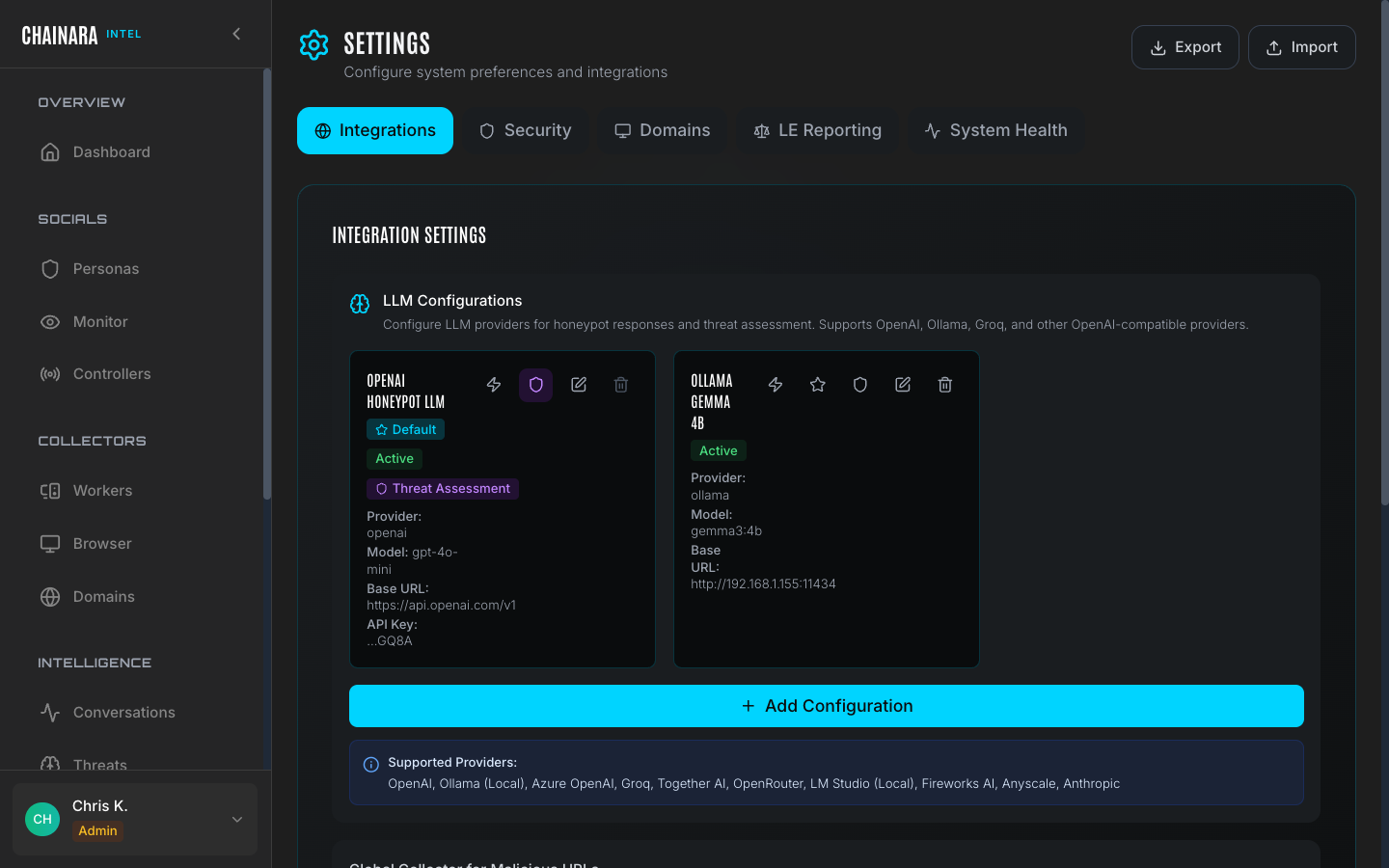
The Integrations tab covers the core operational configuration for Intel.
LLM configurations
Intel uses LLMs for two distinct roles: persona LLM powers the conversational AI in personas, and Threat Assessment LLM classifies threats and generates forensic reports. Configuring them separately lets you optimize cost and quality independently.
Supported providers:
| Provider | Notes |
|---|---|
| OpenAI | GPT-4o, GPT-4o-mini, o1 |
| Anthropic | Claude Sonnet, Claude Haiku |
| Azure OpenAI | Use your Azure deployment endpoint |
| Groq | Fast inference for Llama and Mixtral models |
| Together AI | Open-source model hosting |
| OpenRouter | Multi-provider router |
| Fireworks AI | Optimized open-source inference |
| Anyscale | Managed model deployment |
To add a new LLM configuration:
- Click Add Configuration
- Select your provider from the dropdown
- Enter the Base URL for the provider's API (e.g.
https://api.openai.com/v1) - Enter the Model name exactly as the provider identifies it (e.g.
gpt-4o-mini) - Enter your API key for that provider
- Click Test Connection and wait for the green checkmark confirming the credentials work
- Click Set as Default for the appropriate role: persona LLM or Threat Assessment LLM
You need at least one active configuration assigned as the persona LLM default before any persona can respond to messages.
Recommendations by role:
| Role | Recommended model | Reason |
|---|---|---|
| persona LLM | Fast, low-cost model (e.g. gpt-4o-mini, claude-haiku) | High message volume; response latency directly affects how convincing the persona feels to a scammer |
| Threat Assessment LLM | More capable model (e.g. gpt-4o, claude-sonnet) | Better accuracy on threat classification, scam type detection, and forensic report generation |
Global collector for malicious URLs
Sets the default worker that receives newly discovered malicious URLs for automatic investigation. When a persona receives a suspicious URL from a scammer in any conversation, that URL is immediately submitted to this worker for forensic analysis: no manual action is required.
Choose the worker that should handle new URL submissions when no persona-specific collector is configured. In most deployments, this will be the Forensic Investigator worker.
API keys
| Key | Purpose |
|---|---|
| URLQuery.net API key | Used for URL sandboxing and external analysis enrichment. Obtain a key by creating a free account at urlquery.net. |
| OpenAI API key | Used specifically for law enforcement report generation (can also be set via the OPENAI_API_KEY environment variable) |
Security
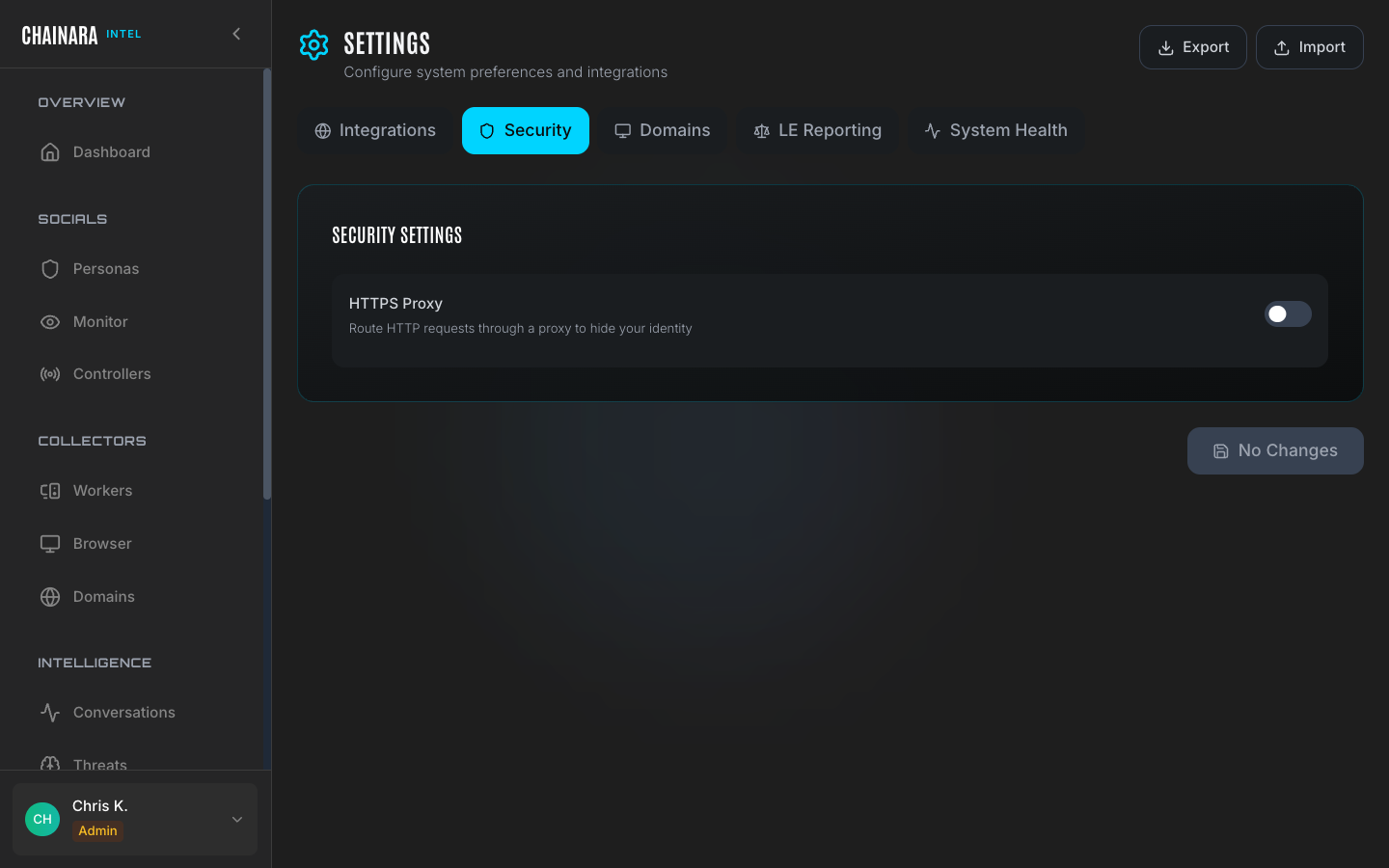
The Security tab configures how Intel makes outbound HTTP requests during investigations.
HTTPS proxy configuration routes all worker HTTP requests through a proxy server, hiding the system's IP address from scam sites during investigation. This is important for:
- Preventing scam operators from detecting and blocking the investigation IP
- Routing investigations through a jurisdiction-appropriate egress point
- Anonymizing the system's origin for sensitive investigations
Configure your proxy server address, port, and credentials in this section. All worker browser sessions will route through the configured proxy when enabled.
Domains
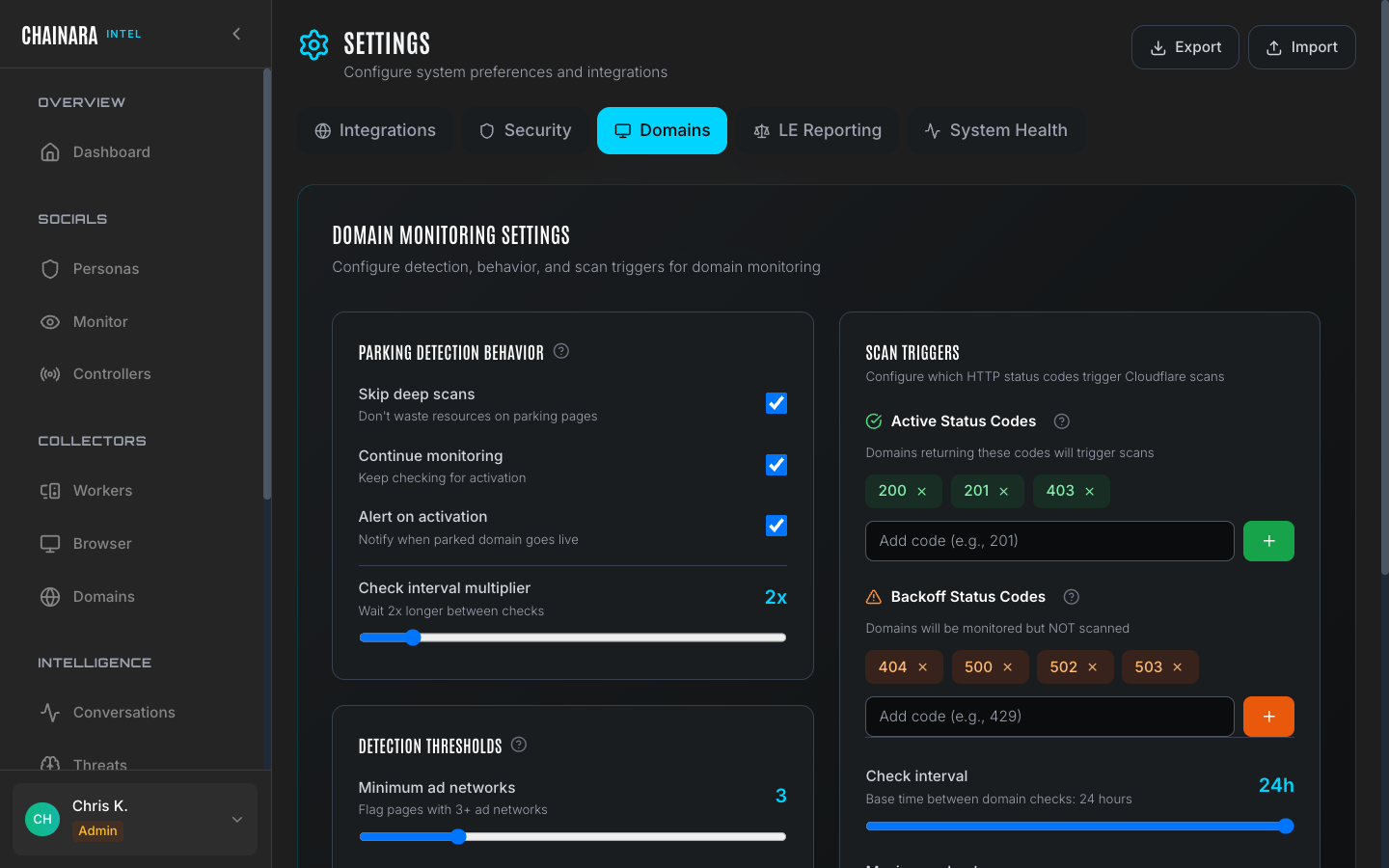
Domain-specific settings control how the domain monitoring engine behaves:
- Default check frequency: how often domains are polled for availability changes
- Backoff configuration: how aggressively to reduce polling frequency for persistently offline domains
- Alerting thresholds: conditions that trigger notifications (domain comes online, risk score changes, HTTP status changes)
- Auto-scan on discovery: whether newly discovered domains are automatically queued for worker investigation
LE reporting
Configure the template and format for law enforcement reports generated from threat data. Settings here affect the output of the LE Report export option available on individual Reports.
Options include:
- Report header/agency information
- Jurisdiction and case reference fields
- Evidence formatting preferences
- Digital signature settings
System health
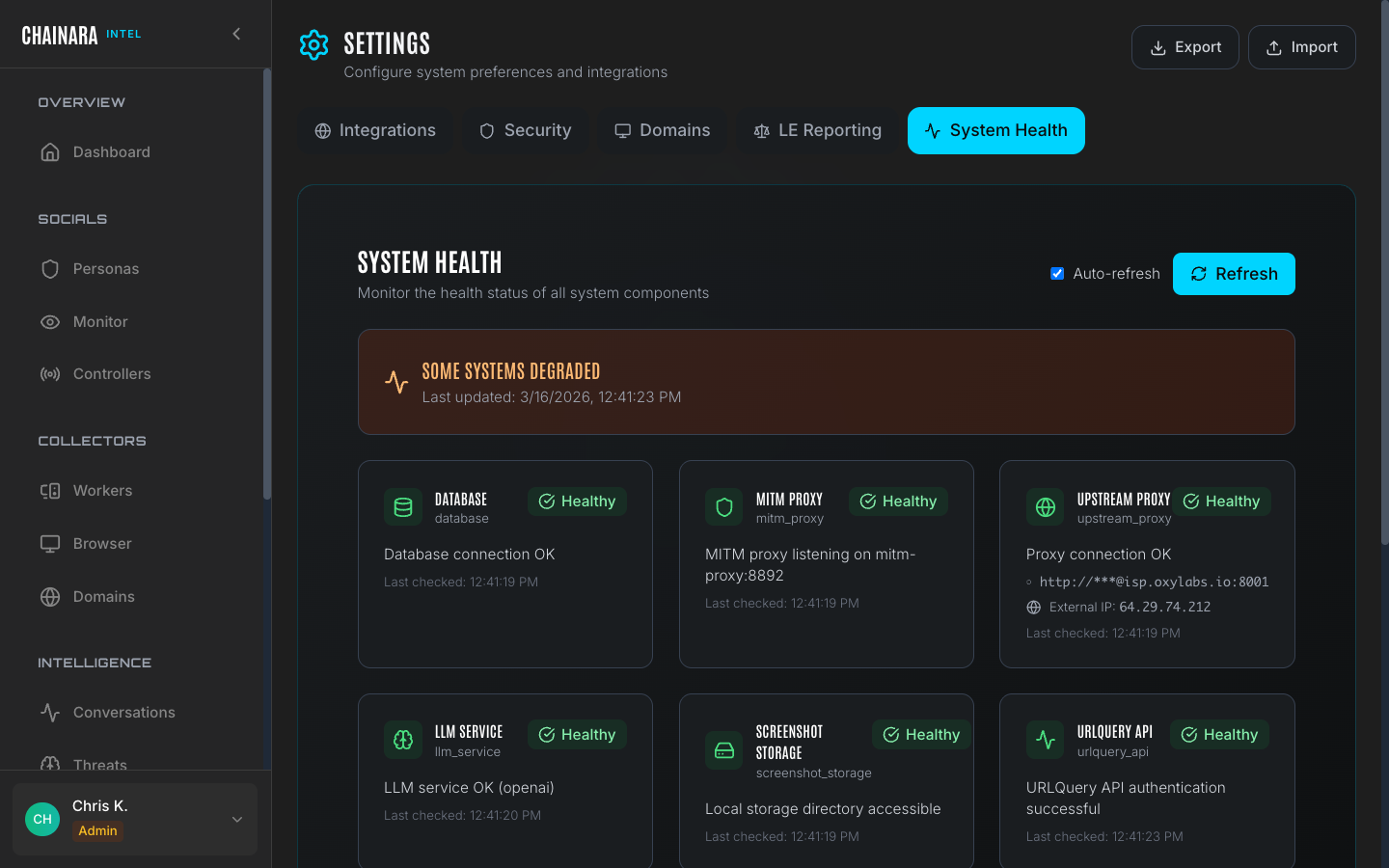
The System Health tab provides a real-time status panel for all Intel infrastructure components:
| Component | What is checked |
|---|---|
| API server | Backend API responsiveness and version |
| Worker queue | Queue depth and whether workers are picking up tasks |
| Database | Connection status and query latency |
| LLM API | Connectivity to each configured LLM provider |
| Browser worker pool | Number of available headless browser instances |
Use this panel to diagnose issues before raising a support request. A worker queue that is growing but not shrinking indicates workers have stopped processing tasks: check the individual worker detail pages for error states.