Browser Viewer
The Browser Viewer provides live visibility into browser sessions being run by workers, and allows manual intervention when automated investigation gets stuck: for example, when a phishing site serves a CAPTCHA to block headless browsers.
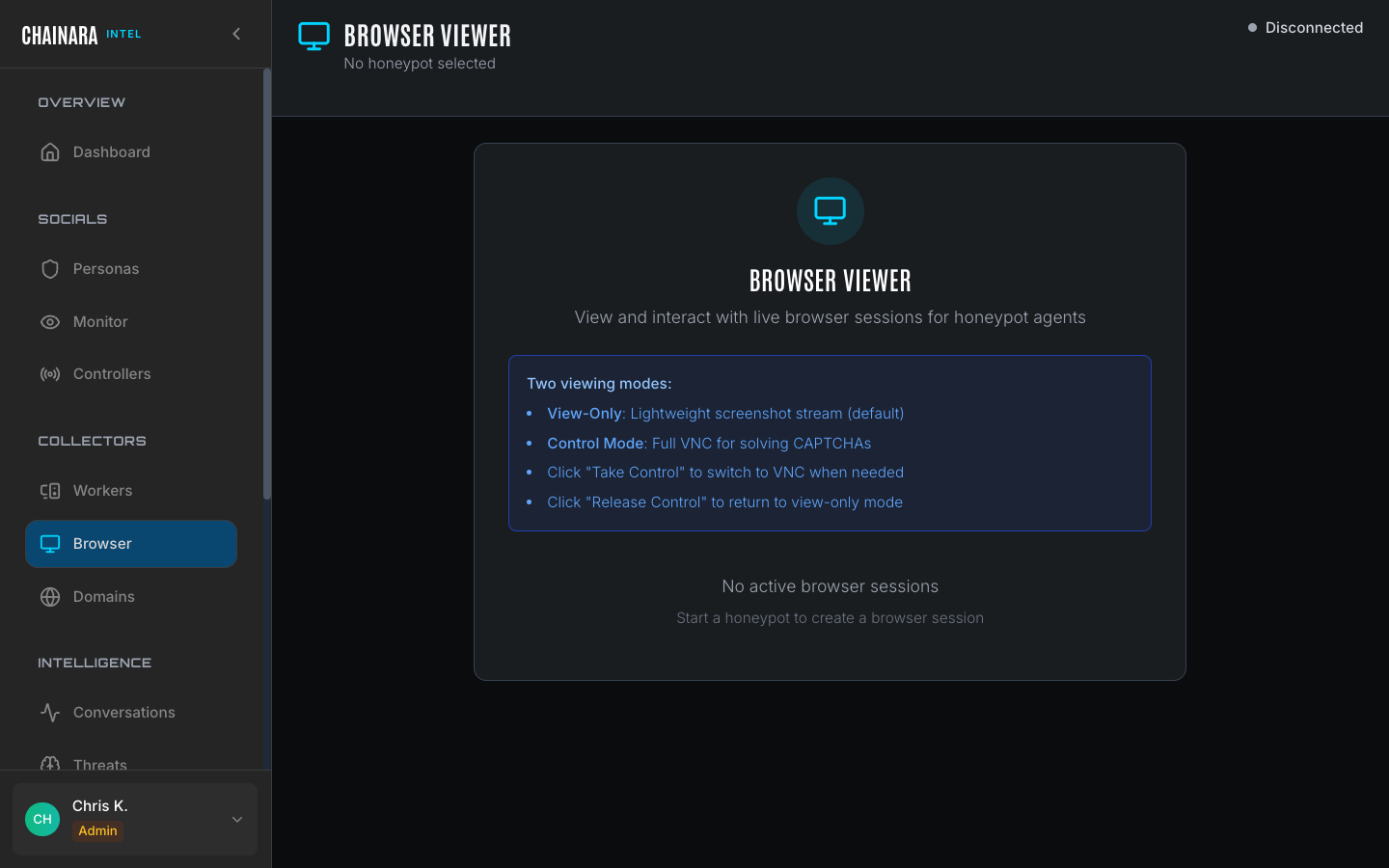
Two viewing modes
| Mode | Description |
|---|---|
| View-Only | Lightweight screenshot stream: watch what the worker is doing without interacting with the browser |
| Control Mode | Full VNC-style connection: take over the browser to click, type, and navigate manually |
View-Only mode
View-Only is the default mode when you open the Browser Viewer. It streams periodic screenshots from the active worker session. Use this mode to:
- Observe an ongoing worker investigation without disrupting it
- Verify that a worker is progressing correctly through a multi-step site flow
- Record visual evidence of what a phishing site contains at each step
- Check whether a session has stalled before deciding to intervene
View-Only adds no overhead to the worker session: the screenshots are captured regardless of whether you are watching.
Control Mode
Control Mode gives you direct keyboard and mouse access to the worker's browser. Switch to this mode when:
- A CAPTCHA appears and blocks the automated worker from proceeding
- A site requires a multi-step identity verification that automation cannot pass
- You need to navigate to a specific deep page to capture particular evidence
- You want to test a phishing form interaction manually before the worker does
To enable Control Mode, click Take Control in the viewer toolbar. When you are done with manual intervention, click Release Control to hand the session back to the automated worker.
Selecting a session
When multiple workers or personas have active browser sessions, use the session dropdown in the top right of the viewer to select which session to observe. The dropdown lists all currently active sessions by worker name and target URL.
If the dropdown shows "No active browser sessions", either no workers are currently running tasks or all running tasks have completed. Sessions appear automatically when a worker picks up a new task from its queue.
Using the Browser Viewer
- Navigate to Browser in the sidebar
- Select the active worker session from the session dropdown (top right)
- The screenshot stream begins automatically in View-Only mode
- To intervene: click Take Control to switch to VNC/Control Mode
- Complete the manual action (e.g. solve the CAPTCHA or navigate to the target page)
- Click Release Control to return the session to the automated worker
Session status
| Status | Description |
|---|---|
| Active | Worker is running and the browser is operating |
| Waiting | Worker is idle between tasks; no browser session open |
| Stalled | Browser appears frozen: likely a CAPTCHA or unhandled modal |
| No sessions | No workers currently have active browser sessions |
Keep the Browser Viewer open in a separate browser tab during large batch investigations. If a worker gets stuck on a CAPTCHA, you will see the screenshot stream stall on the CAPTCHA page. Switch to Control Mode immediately to unblock it: phishing sites often expire CAPTCHAs after a short time window, so acting quickly preserves the investigation session.