Controllers
Controllers manage the Discord and Telegram bot connections that power personas. Each controller is a bot account connected to one or more servers or guilds where personas operate. You can think of a controller as the platform-level credential layer: it handles authentication and messaging transport, while the persona handles identity and conversation behavior.
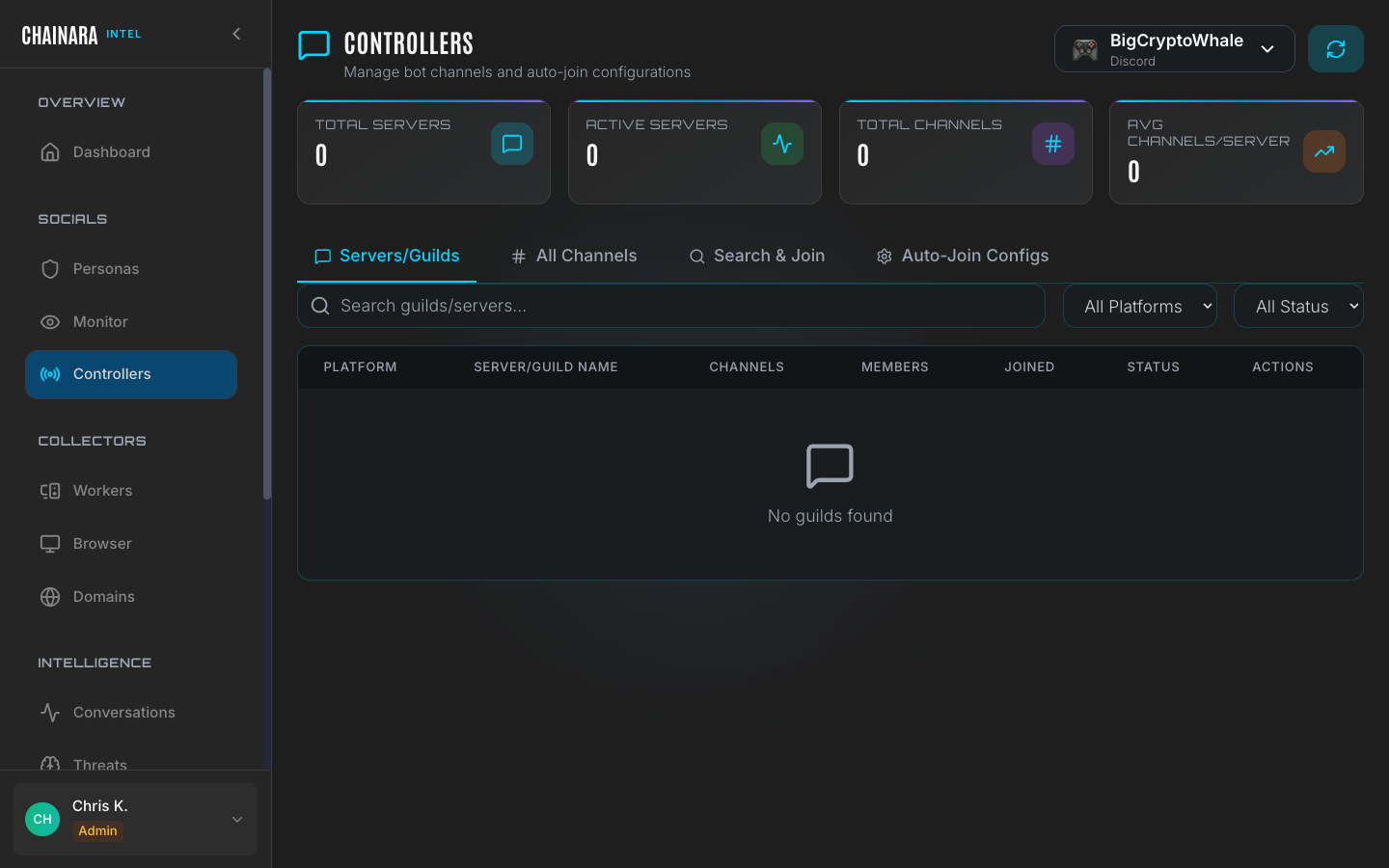
Overview stats
| Metric | Description |
|---|---|
| Total servers | Discord/Telegram servers the bots have joined |
| Active servers | Servers with current active monitoring enabled |
| Total channels | Channels being monitored across all servers |
| Avg channels/server | Average channel depth per server |
Tabs
Servers and guilds
The default view lists all Discord servers and Telegram groups the bot accounts have joined. This is the primary place to see the scope of your monitoring coverage.
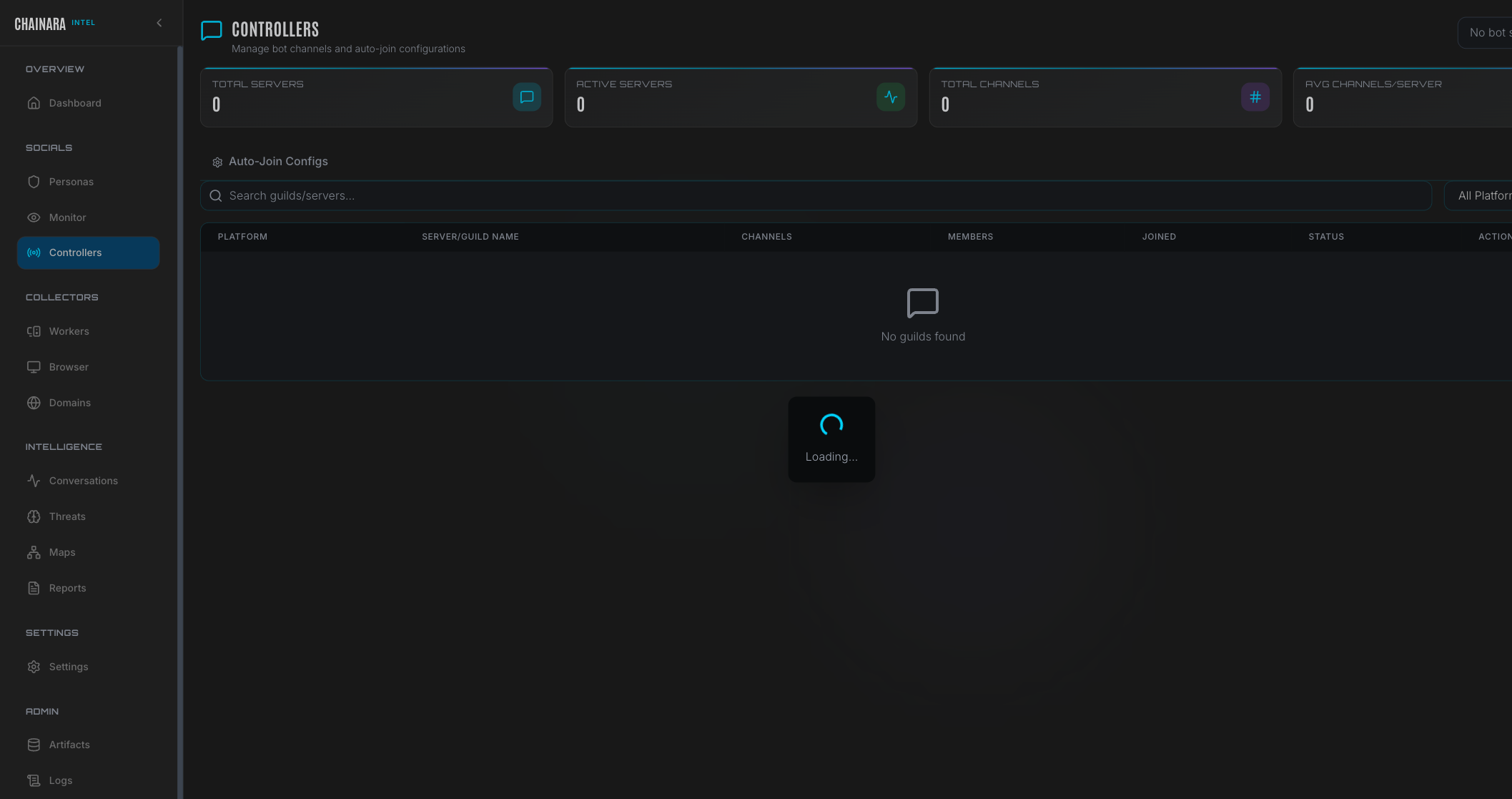
| Column | Description |
|---|---|
| Platform | Discord or Telegram |
| Server/guild name | The name of the server or group |
| Channels | Number of monitored channels within this server |
| Members | Total member count of the server |
| Joined | Date the bot account joined |
| Status | Active / Inactive / Error / Cached |
A status of Cached means the server data was fetched previously but the bot is not actively connected. Error means the connection was lost: check the bot token validity in the controller configuration.
All channels
Lists every individual channel being monitored across all joined servers.
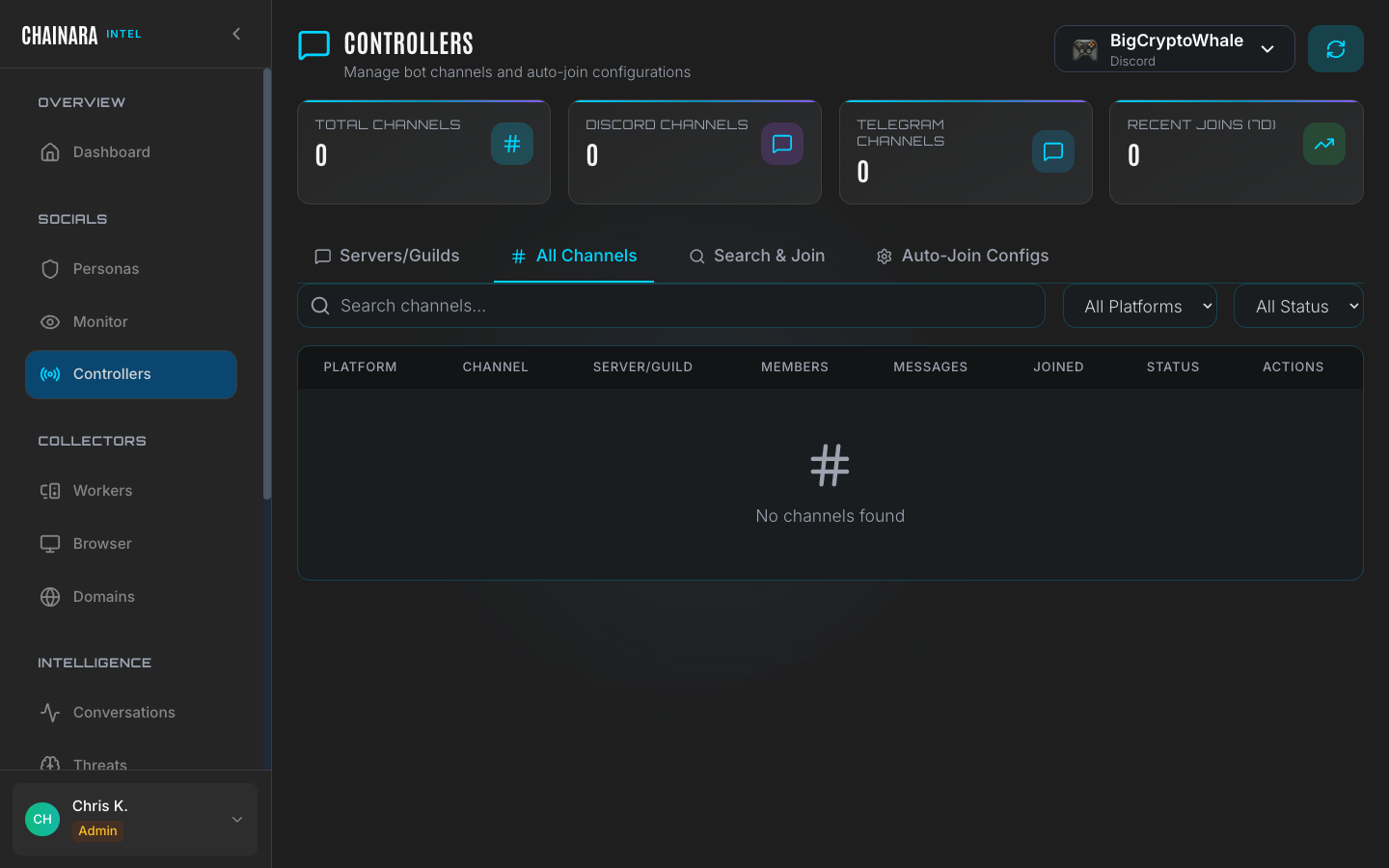
Use this tab to:
- Find specific channels where scam activity has been detected
- See which channels a persona is actively monitoring
- Identify channels with the highest message volume
- Verify that newly joined servers have their channels indexed
Channels are listed with their parent server name, channel type (text, announcement, etc.), and last activity timestamp.
Search and join
Search for Discord servers by keyword, invite code, or known scam server patterns, then join them directly from the UI.
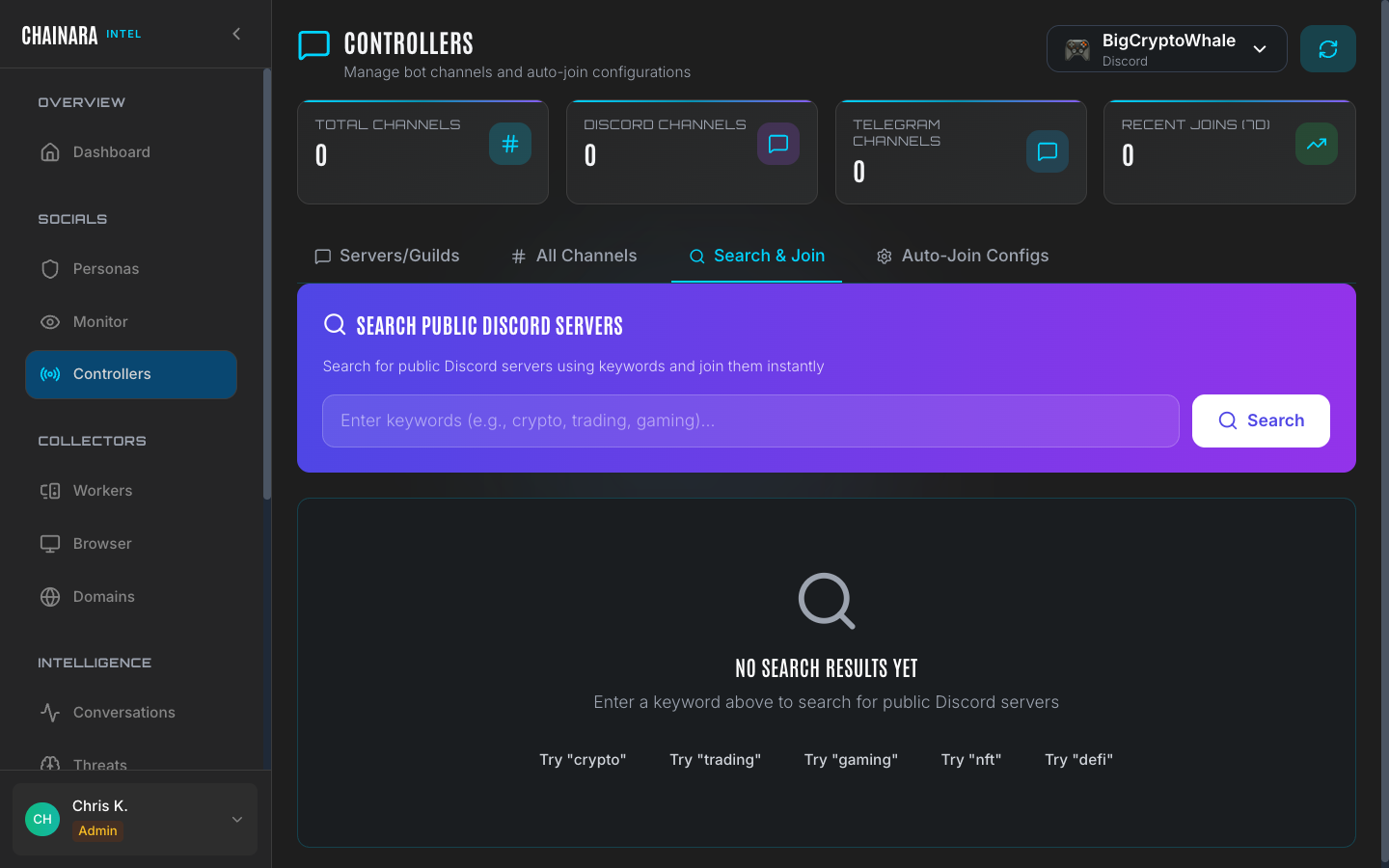
Use this tab to proactively infiltrate servers you have intelligence on. You can:
- Search by keyword (e.g. "crypto giveaway", "XRP investment")
- Enter a direct Discord invite link to join a specific server
- Select which controller (bot account) should join
- Review server details before joining to confirm it is a target of interest
Joining servers with a bot account using aggressive keyword searches can result in the bot account being flagged by Discord. Use targeted searches based on specific intelligence rather than broad keyword sweeps.
Auto-join configs
Configure rules that automatically join servers when certain conditions are met:
- Keyword match: join any server whose invite or description contains specified terms
- Invite extraction: automatically follow invite links shared by scammers in active conversations
- Domain association: join servers linked to domains already in your monitoring list
Auto-join configs allow the system to expand its coverage autonomously as scammers share infrastructure in conversations.
Adding a controller
- Click Add Controller in the top right
- Select the Platform (Discord or Telegram)
- Paste the Bot token from your platform developer portal
- Assign the controller to a Persona: this links the bot account to the persona identity that will use it
- Optionally configure channel filters to restrict monitoring to specific channel types
- Click Save & Connect
The bot will authenticate, retrieve its server membership list, and begin indexing channels in any servers it is already a member of. Newly joined servers appear in the Servers and Guilds tab within a few seconds.
Each controller requires a valid platform bot token. For Discord, create a bot application at discord.com/developers and generate a token with the required message reading and server membership permissions. For Telegram, use BotFather to create a bot and obtain the API token.
Controller status
Controllers report one of the following connection states:
| Status | Meaning |
|---|---|
| Connected | Bot is authenticated and receiving messages |
| Disconnected | Token valid but bot is not currently connected |
| Error | Token invalid or connection failed: check the token and reconnect |
| Rate limited | Platform has temporarily throttled the bot account |
Troubleshooting
| Symptom | Cause | Resolution |
|---|---|---|
| Controller shows Error status | Invalid or revoked bot token | Re-generate the token in the platform's developer portal, update the token in the controller config, and click Reconnect |
| Controller shows Rate limited | Too many API requests in a short period | Wait for the cooldown period (typically 10–60 minutes). Avoid running frequent keyword searches with the same bot account. |
| New server not appearing after join | Server index still loading | Wait 30 seconds and refresh. Large servers (10k+ members) may take up to 2 minutes to fully index. |
| Channels not visible in a joined server | Bot lacks channel read permissions | Check that the bot has the required permissions in the target server. For Discord, the bot needs Read Messages and Read Message History in each channel. |
| Server shows Cached status | Bot is no longer connected to the gateway | Click Reconnect on the controller. If the server is no longer needed, remove it from the Servers list to stop caching. |