Admin Panel
The Admin Control Panel is the operational hub for managing all platform data: domains, fraud reports, wallet blacklists, users, invitations, verification queues, and webhook integrations. Only users with the Admin role can access this section.
Navigate to Admin in the left sidebar to open it. The panel opens on the Domains tab by default.
Domains
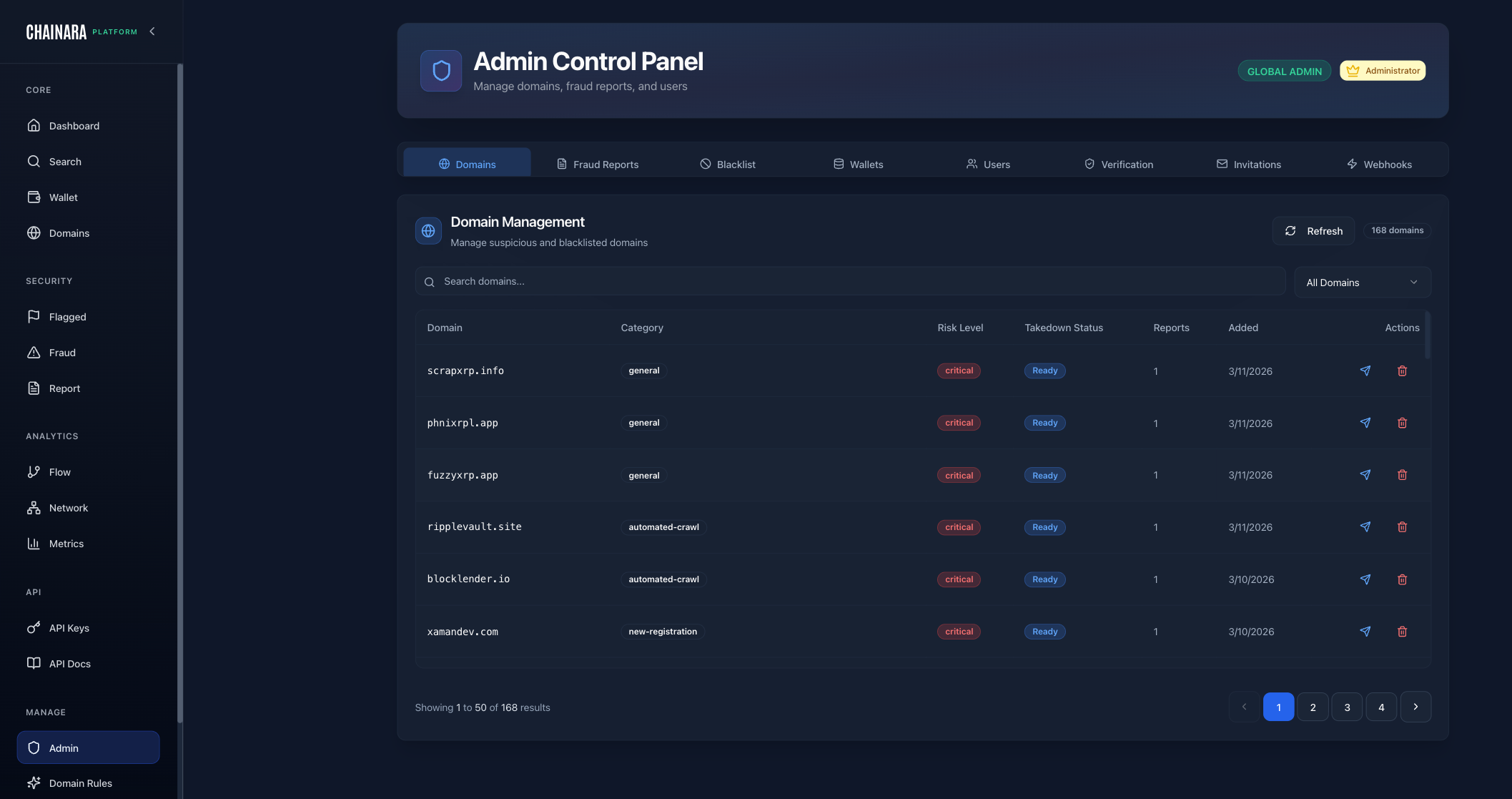
The Domains tab is the master list of every domain the platform monitors. It shows the full catalog with risk classification and takedown tracking.
Columns:
| Column | Description |
|---|---|
| Domain | The monitored domain name |
| Category | How the domain was classified (e.g. general, automated-crawl, new-registration) |
| Risk Level | Current risk level: Low / Medium / High / Critical |
| Takedown Status | Whether a takedown has been filed and its current state |
| Reports | Number of fraud reports linked to this domain |
| Added | Date the domain was added to the platform |
| Actions | Edit or delete the domain entry |
What you can do:
- Add Domain: manually add a domain to the monitoring system and trigger immediate analysis
- Edit: update a domain's category, risk level, or notes
- Delete: remove a domain from monitoring
- Edit extensions: manage the TLD/domain extension settings used during crawling
- Filter by risk level and status using the dropdown at the top right
Fraud Reports
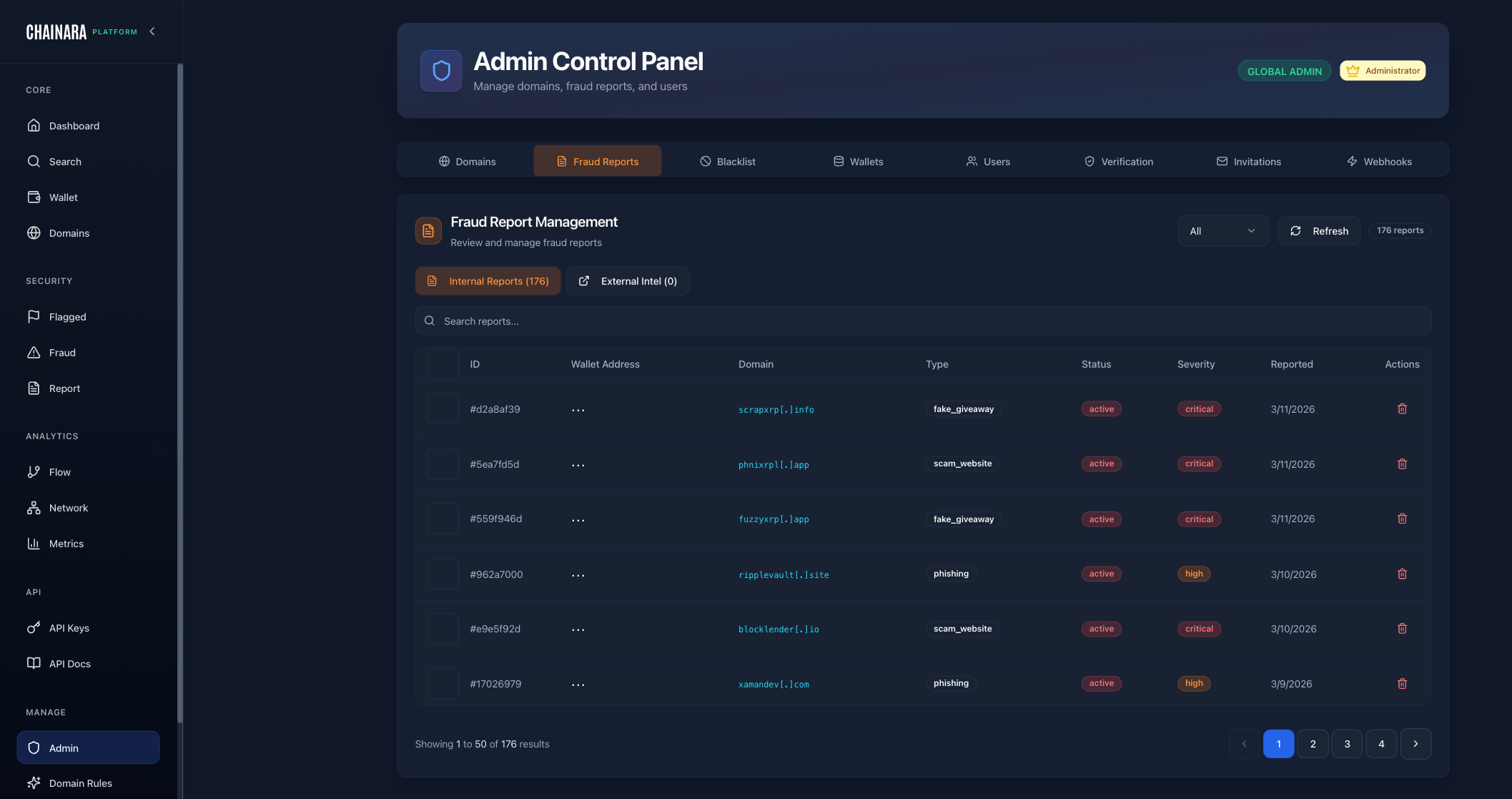
The Fraud Reports tab centralizes all internal fraud investigations and external intelligence submissions. This is where your analysts review, triage, and manage the full threat report lifecycle.
Two data sources:
| Tab | Description |
|---|---|
| Internal Reports | Fraud reports generated by Chainara's own investigation pipeline |
| External Intel | Reports ingested from external threat intelligence integrations |
Columns:
| Column | Description |
|---|---|
| ID | Unique report identifier |
| Wallet Address | The blockchain address named in the report, if any |
| Domain | The associated scam domain, if any |
| Type | Report type: fake_giveaway, phishing, scam_website, fraudulent_wallet, etc. |
| Status | Current status: Active, Pending, Archived |
| Severity | Threat severity: Low / Medium / High / Critical |
| Reported | Date the report was created |
| Actions | View details or delete the report |
What you can do:
- Search reports by keyword, wallet, or domain
- Filter by data source (Internal vs. External Intel)
- View the full report detail for any entry
- Delete a report if it's a duplicate or false positive
- Total report count is shown at the top right
Blacklist
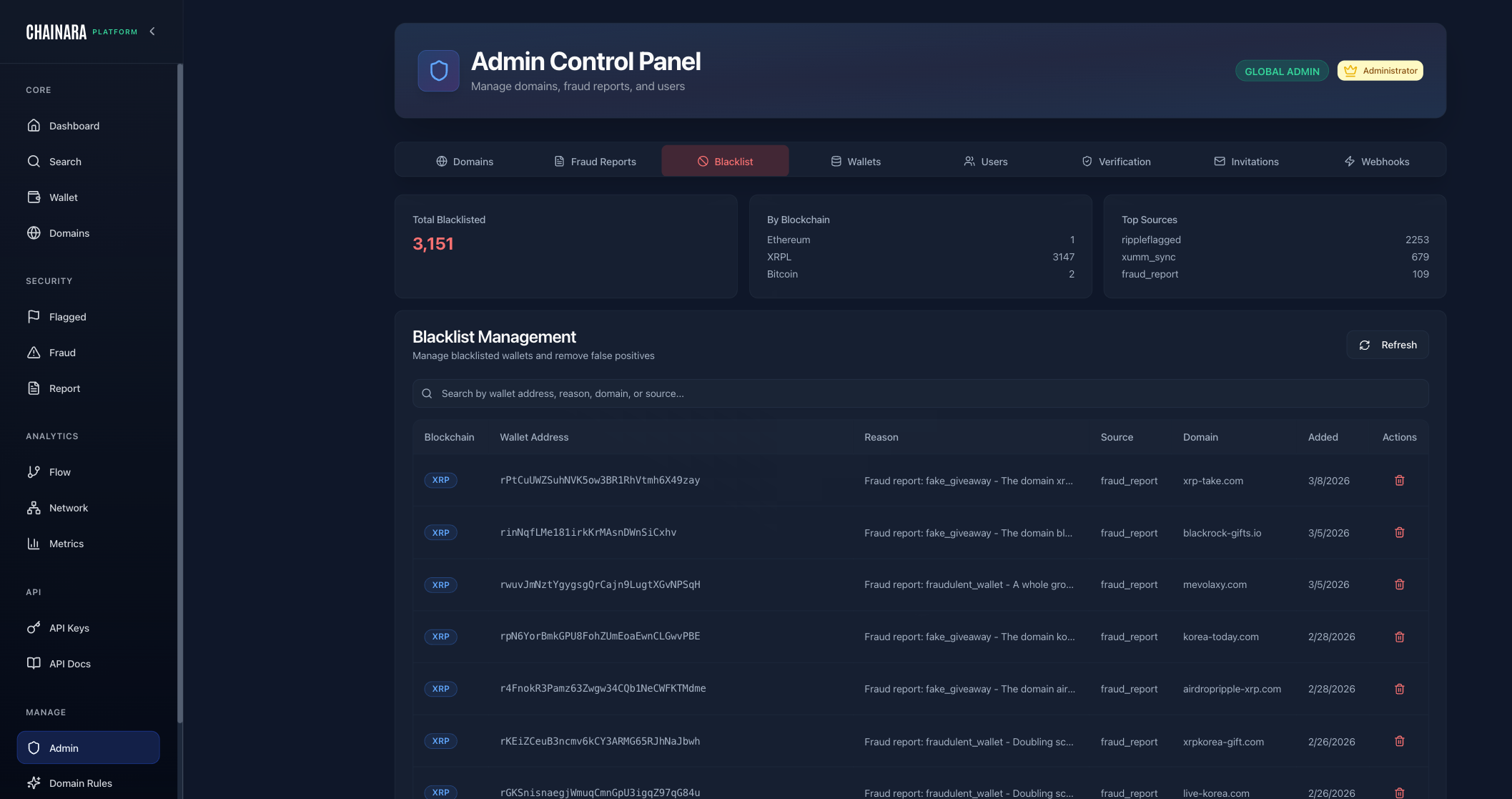
The Blacklist tab manages the global list of confirmed malicious blockchain addresses. These are addresses that are blocked across all platform functions: wallet scoring, threat feed, and API responses.
Summary stats at the top:
- Total Blacklisted: current total count (e.g. 3,151)
- By Blockchain: breakdown by chain (XRP, Ethereum, BNB, Bitcoin)
- Top Sources: which data sources contributed the most entries (e.g.
domain_scan,admin_ops,fraud_report)
Columns:
| Column | Description |
|---|---|
| Blockchain | The chain this address belongs to (XRP, ETH, etc.) |
| Wallet Address | The blacklisted address |
| Reason | The reason for blacklisting, sourced from the fraud report or investigation |
| Source | Data source that flagged this address (e.g. fraud_report, ripple_flagged, admin_ops) |
| Domain | The scam domain this address is associated with, if known |
| Added | Date the address was added to the blacklist |
| Actions | Remove the entry from the blacklist |
What you can do:
- Search by wallet address, reason, or source
- Refresh to pull the latest blacklist state
- Remove an address if it was blacklisted in error
Wallets
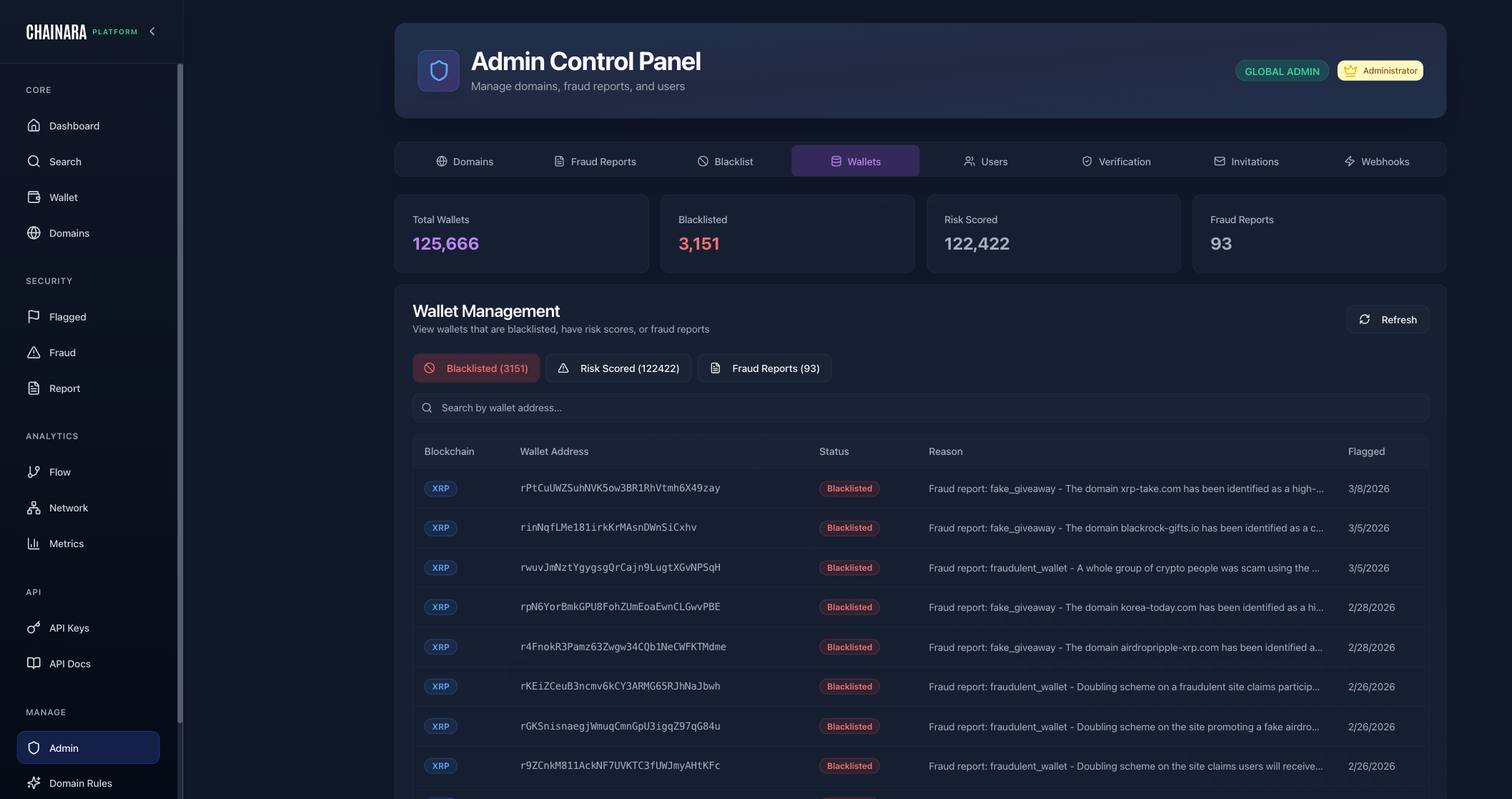
The Wallets tab gives a broad view of all wallet addresses in the platform: not just blacklisted ones, but the full intelligence corpus including risk-scored and fraud-linked addresses.
Summary stats at the top:
- Total Wallets: all addresses in the database (e.g. 125,666)
- Blacklisted: confirmed malicious (e.g. 3,151)
- Risk Scored: addresses that have received a risk score (e.g. 122,422)
- Fraud Reports: addresses linked to at least one fraud report (e.g. 93)
Filter tabs:
| Tab | Description |
|---|---|
| Blacklisted | Confirmed malicious addresses only |
| Risk Scored | Addresses with a computed risk score |
| Fraud Reports | Addresses tied to a fraud report |
Columns:
| Column | Description |
|---|---|
| Blockchain | The chain this address belongs to |
| Wallet Address | The address |
| Status | Current status (e.g. Blacklisted) |
| Reason | Why this address is flagged |
| Flagged | Date the address was flagged |
What you can do:
- Switch between filter tabs to narrow the view
- Search by wallet address
- View the reason and source for any flagged address
Users
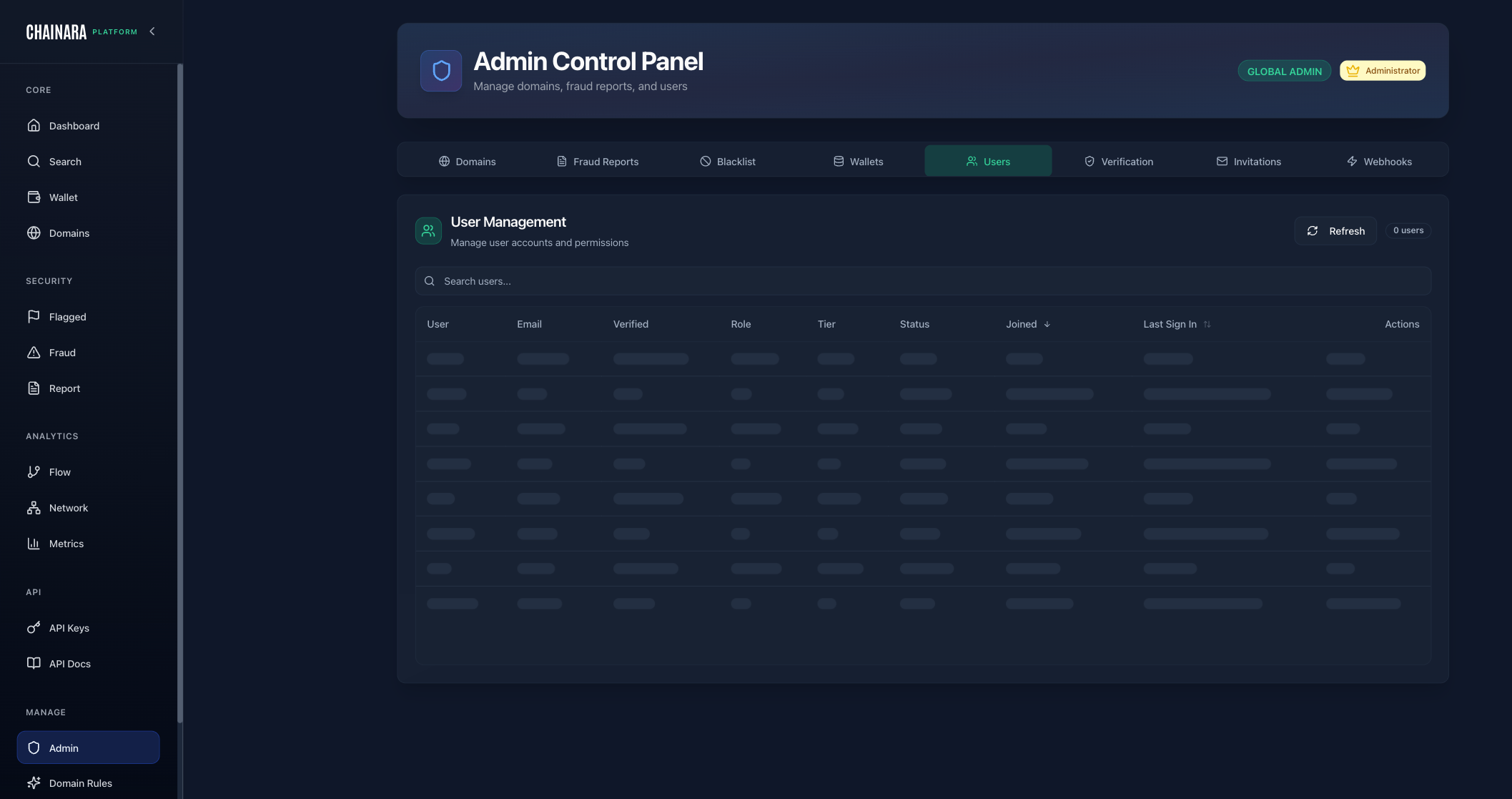
The Users tab is the central place to manage everyone who has access to the platform: view accounts, adjust roles, and control access.
Columns:
| Column | Description |
|---|---|
| User | Display name |
| User's email address | |
| Verified | Whether the user's email has been verified |
| Role | Platform role: Admin, Analyst, or Viewer |
| Tier | Subscription tier |
| Status | Active or inactive |
| Joined | Account creation date |
| Last Sign In | Most recent login timestamp |
| Actions | Manage the user account |
What you can do:
- Search users by name or email
- Refresh to sync the latest account state
- Change role: promote or demote a user between Admin, Analyst, and Viewer
- Deactivate a user to revoke their access without deleting the account
- Invite new users via the Invitations tab (see below)
Role changes take effect on the user's next login or page refresh.
Verification
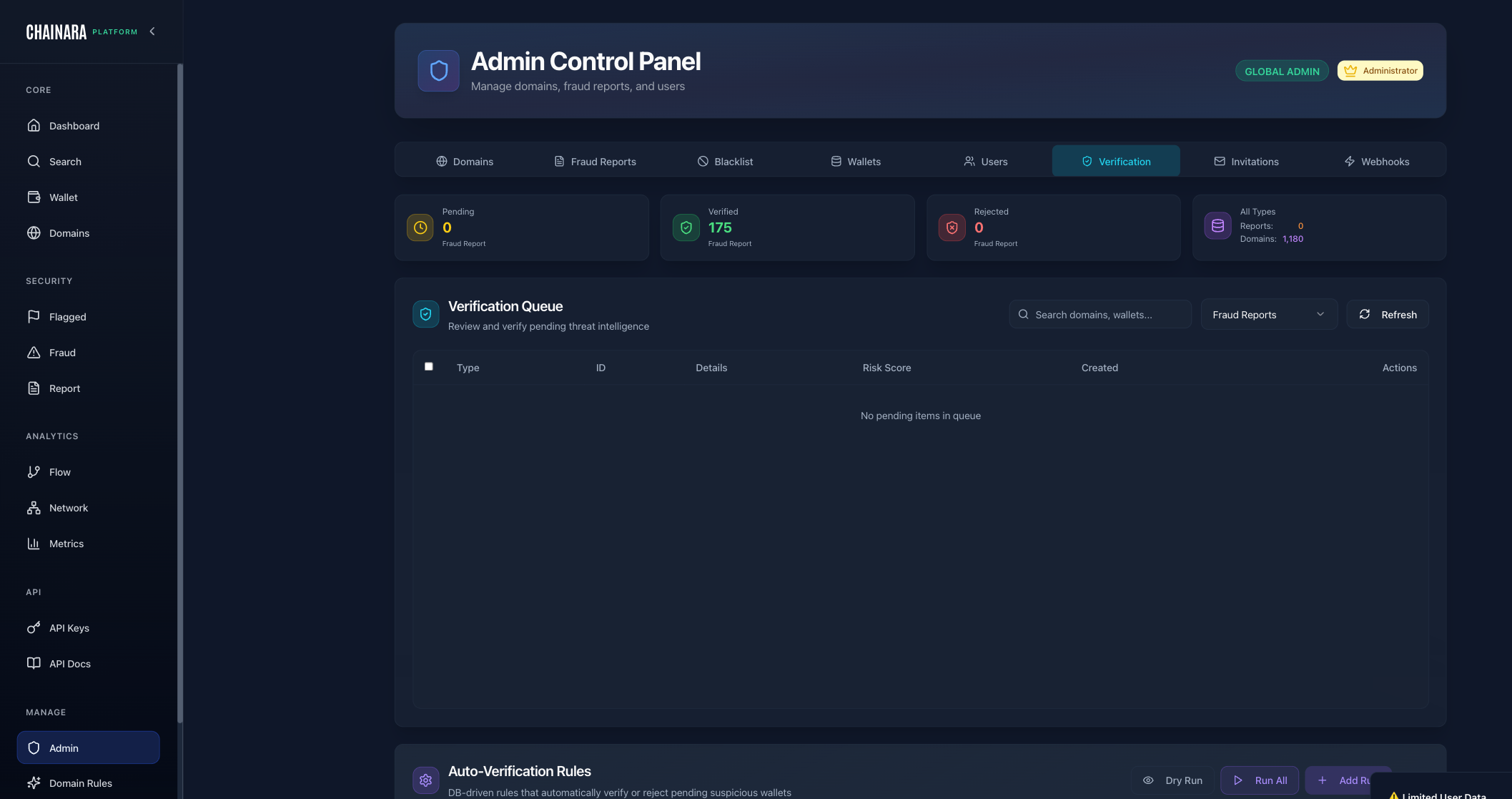
The Verification tab is the review queue where suspicious domains and wallets are evaluated before being promoted to verified threat intelligence.
Summary stats:
| Stat | Description |
|---|---|
| Pending | Items awaiting manual review |
| Verified | Total items that have been confirmed as threats |
| Rejected | Items reviewed and cleared (false positives) |
| All Types | Breakdown by type: Reports and Domains |
Queue columns:
| Column | Description |
|---|---|
| Type | domain or wallet |
| ID | Internal identifier |
| Details | Summary of the threat intelligence item |
| Risk Score | Computed risk score at time of submission |
| Created | When the item entered the queue |
| Actions | Verify or reject the item |
Auto-Verification Rules:
Below the queue is the Auto-Verification Rules section. These are database-driven rules that automatically verify or reject pending wallets, domains, fraud reports, and community reports based on defined criteria, removing the need for manual review on clear-cut cases.
| Action | Description |
|---|---|
| Dry Run | Test a rule against current data without actually promoting or rejecting anything. Returns the count and identifiers of items the rule would have actioned. |
| Run (per rule) | Execute a single rule against the pending queue. Useful for spot-running a recently edited rule. |
| Run All | Execute every active rule against the full pending queue in one pass. |
| Add Rule | Create a new auto-verification rule. |
Rules support entity types: wallet, domain, fraud_report, community_report. Each rule can also include evidence requirements: gating conditions that must be satisfied before the rule fires. Examples:
requireInternalFraudReportsOnly: only verify when the supporting evidence is internally generated, not from external feeds- Minimum number of corroborating signals
- Minimum confidence threshold
In addition to the manual buttons in the UI, rules run automatically on a schedule (every 15 minutes) so verification stays current without requiring an analyst to be logged in.
This automation significantly reduces analyst workload on high-confidence detections without giving up the audit trail. Every auto-action is logged with the rule that fired and the evidence that was checked.
Invitations
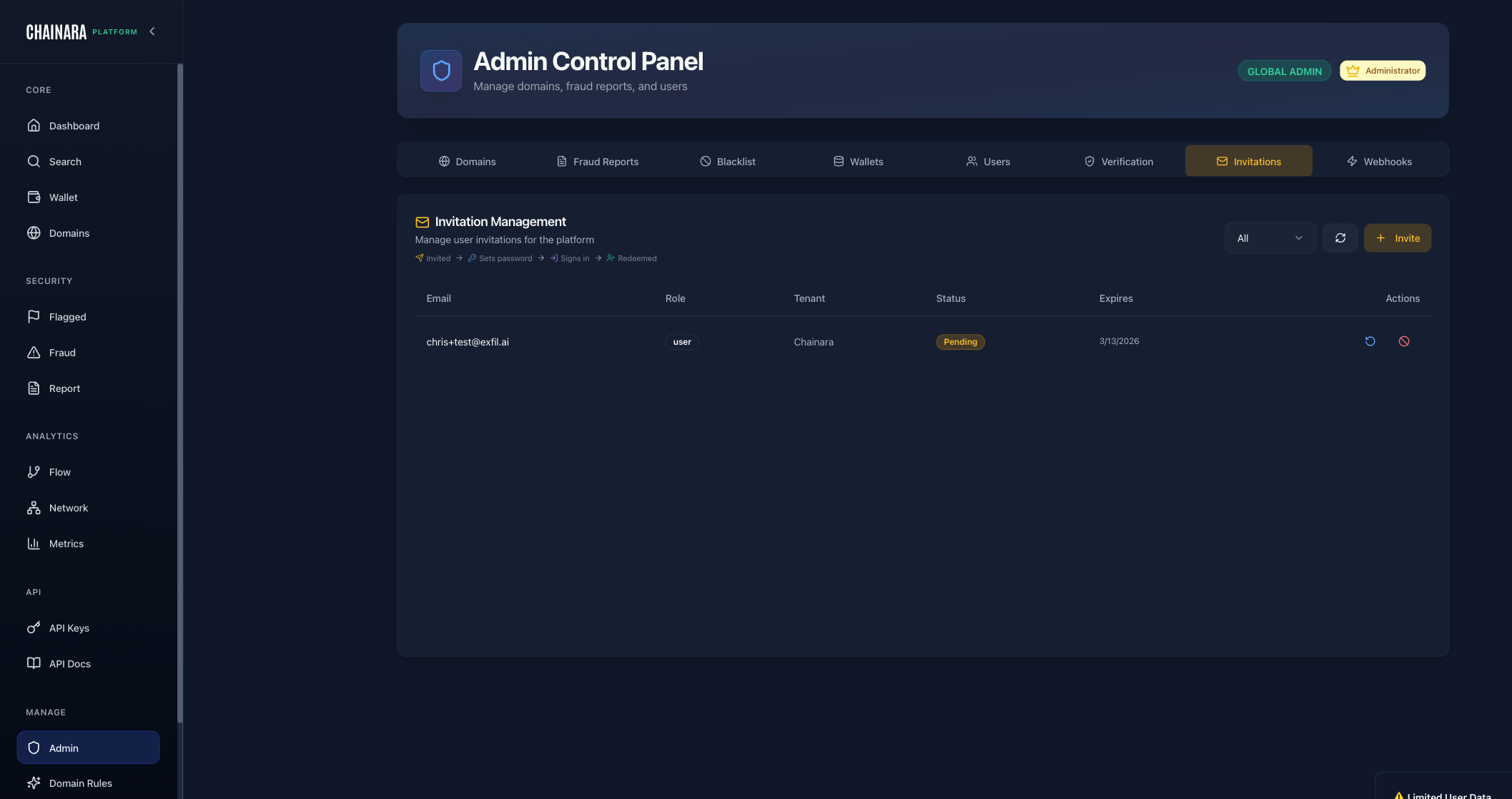
The Invitations tab manages pending email invitations to the platform. Invitations have a defined lifecycle: Invited → Sets password → Signs in → Redeemed.
Columns:
| Column | Description |
|---|---|
| The invited user's email address | |
| Role | The role assigned to this invitation (Admin, Analyst, Viewer) |
| Tenant | The organization tenant this user is being invited to |
| Status | Current state: Pending, Redeemed, or Expired |
| Expires | The invitation expiry date |
| Actions | Resend or revoke the invitation |
What you can do:
- Invite: click the Invite button to send a new invitation by email
- Filter: view all invitations or filter by status
- Resend: resend the invitation email if the link has expired
- Revoke: cancel a pending invitation
- Refresh: reload the invitation list
Invitations expire after 7 days. If a user misses the window, resend from this tab.
Webhooks
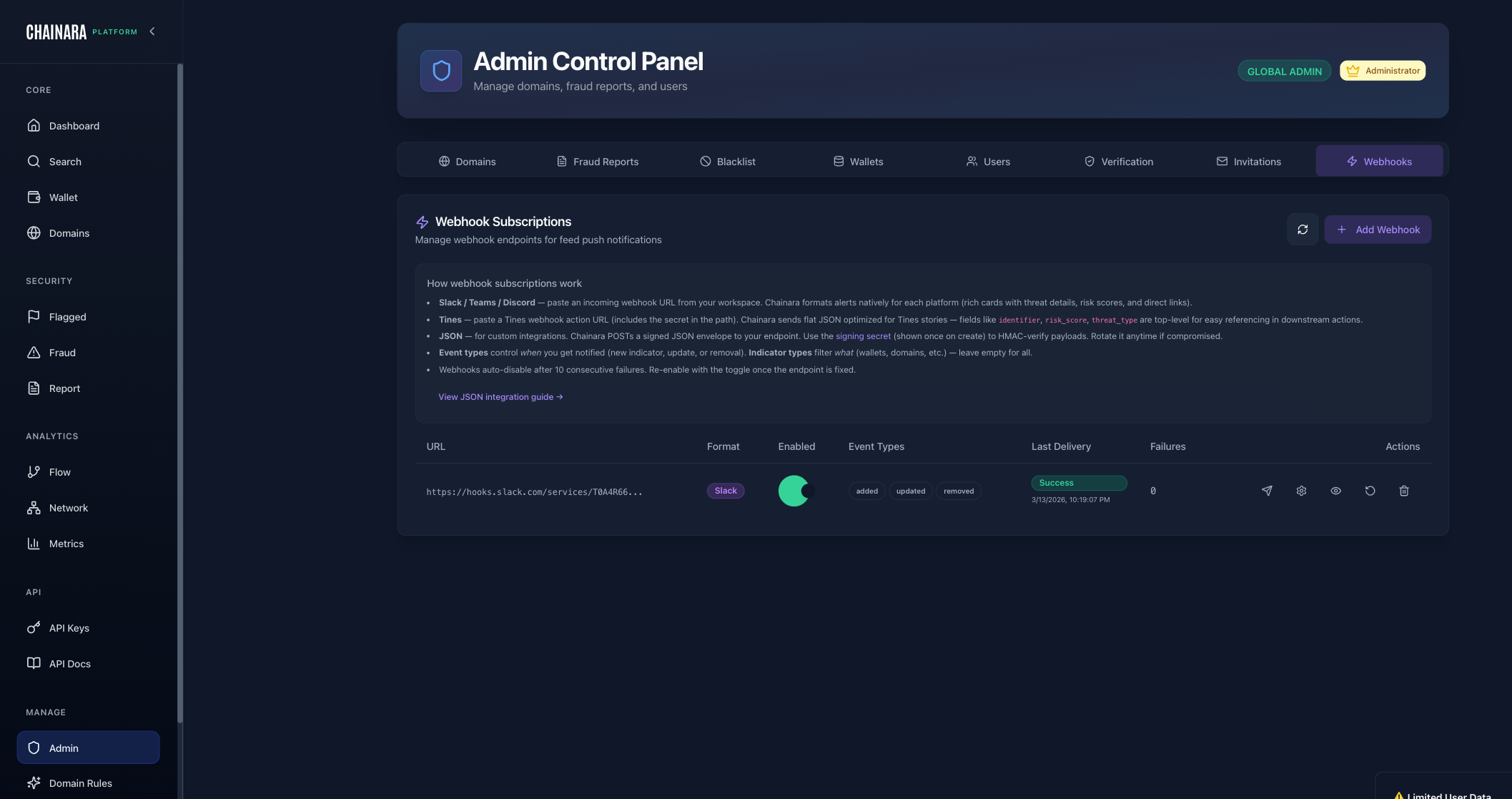
The Webhooks tab manages outbound event notifications to external systems. Use this to push threat intelligence in real time to your SIEM, SOAR, exchange compliance platform, or any HTTP endpoint.
Available event types:
- Block / Freeze / Chainlink: wallet block/freeze decisions and chain-level triggers
- SIEM / SOAR: structured event payloads for security operations platforms
- Custom: subscribe to specific indicator types: domains, wallets, domain-wallet pairs
Columns:
| Column | Description |
|---|---|
| Name / URL | A friendly name for the webhook (e.g. Ripple SIEM, Tines Production, Slack #alerts) above the truncated URL. The name is optional but strongly recommended once you have more than two or three webhooks. |
| Format | Payload format: json, tines, slack, teams, or discord |
| Enabled | Whether the webhook is currently active |
| Event Types | The event subscriptions configured for this endpoint (indicator_added, indicator_updated, indicator_removed, takedown_submitted) |
| Last Delivery | Timestamp of the most recent successful delivery |
| Failures | Count of delivery failures since last success |
| Actions | Edit, test, or delete the webhook |
What you can do:
- Add Webhook: register a new endpoint with a URL, event type selection, and an optional friendly name
- Enable/disable a webhook without deleting it
- View delivery history: click into a webhook to see the delivery log, response codes, and retry status
- Delete a webhook endpoint
Webhooks use the same payload format as the Threat Intelligence Feed. See the Threat Intelligence Feed page for full schema documentation, signature verification, and retry policy details.